Americans with Disabilities Act Accessibility in Website Content ( ADA )
When entering content into the admin of your website, it is sometimes copied from another source where HTML is inserted without your knowledge. That sometimes results in a user of your website not being able access the content properly. We have added some alerts when saving content in the admin that will help guide you on mistakes made.
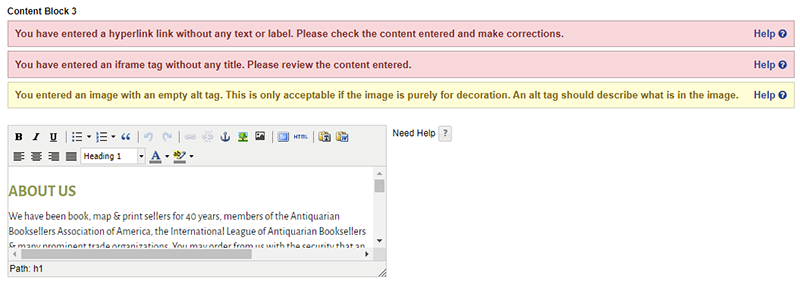
Don't worry! Your content is still saved when a message appears. These messages are there to help guide you.
Missing or Empty Alt Tags
An alt tag is an attribute added to an image. It should describe what is happening in that graphic, so blind or impaired users can be read what is on the screen. Without these tags you are leaving your site at a disadvantage.
Alt tags are required to be on an image even if the tag is empty.
<img src="/img/example.jpg" alt="" />The tag should only be empty if the graphic is purely for decoration. If the image has any information that would be helpful to the user, it should be in the alt tag.
<img src="/img/example.jpg" alt="My cat sitting in the grass with reading glasses" />Fixing empty alt tags
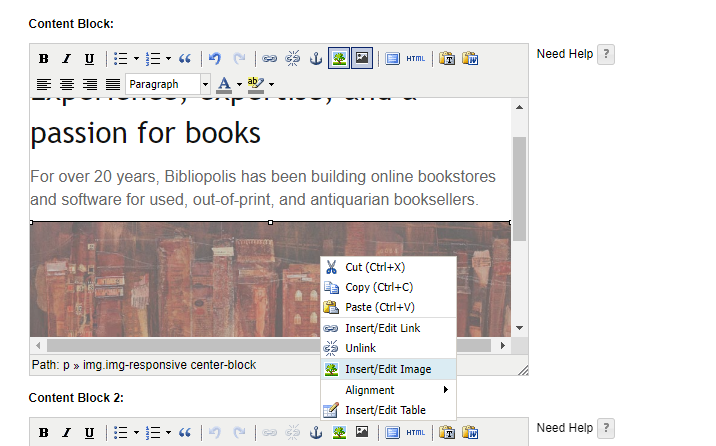
You can edit the alt tag of an image by right clicking on the image it in the editor and selecting Insert/Edit Image.
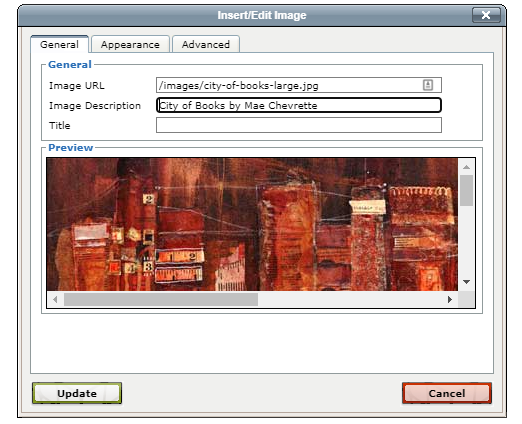
Enter the text in the Image Description field under the General tab. Then click Update.
Missing Titles on an iframe
Like an image, an iframe can contain other media that will likely be visual and useful to your user in some way. It should always have a title tag describing it.
<iframe title="A map of my bookstore" src="https://www.google.com/maps/embed"></iframe>Fixing missing titles
The only way to fix a missing title on an iframe is to edit the HTML. You can do this by clicking the icon that says HTML.
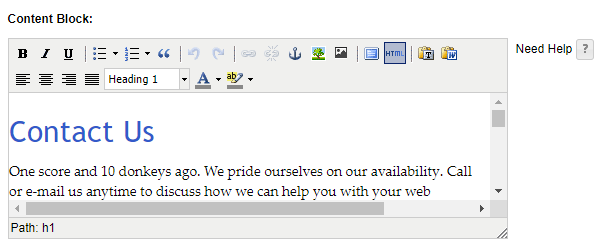
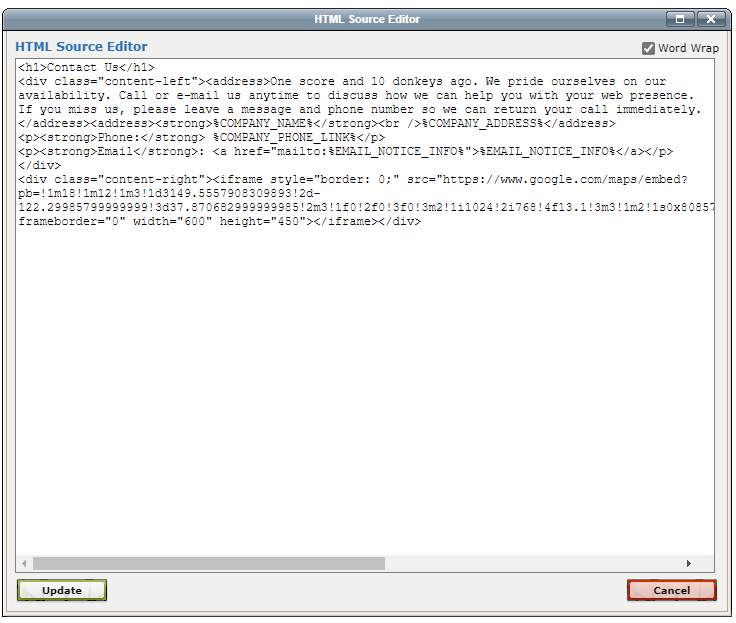
Find the text that looks like <iframe. Now you want to add a space then the text title followed by an equals sign. The text you want to describe the image inside double quotes. It would look something like this.
<iframe title="Map of Bibliopolis offices" style="border: 0;" src="https://www.google.com/maps/embed?pb=!1m18!1m12!1m3!1d3149.5557908309893!2d-122.29985799999999!3d37.870682999999985!2m3!1f0!2f0!3f0!3m2!1i1024!2i768!4f13.1!3m3!1m2!1s0x80857edcac4f5e79%3A0xd76f5cba3e78a4c2!2sBibliopolis!5e0!3m2!1sen!2sus!4v1396042087102" frameborder="0" width="600" height="450"></iframe>Missing context in a hyperlink
Sometimes you will have inserted an image inside a link, but you forgot to add an alt tag. Links need to have context to them.
<a href="https://www.examplebooksite.com"><img src="/img/example.jpg" alt="" /></a>Or you could have pasted some text without realizing there is no text inside the link.
<a href="https://www.examplebooksite.com"></a>Fixing missing label or text in a hyperlink
The only way to fix a missing title on an iframe is to edit the HTML. You can do this by clicking the icon that says HTML.
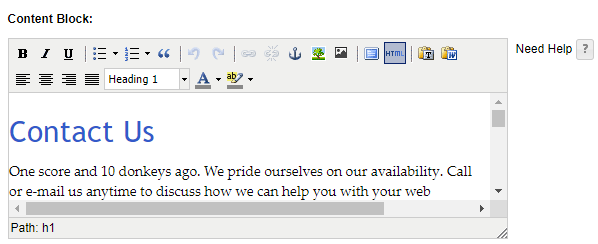
- Plain text between the <a></a> tags
<a href="https://www.examplebooksite.com">This is my label</a>- An image with an alt tag between the <a></a> tags
<a href="https://www.examplebooksite.com"><img src="/img/example.jpg" alt="This is my label" /></a>- When it is a link with only an icon and the design calls for no text, then adding an aria-label attribute works
<a href="https://www.examplebooksite.com" aria-label="This is my label"><i class="fa fa-icon"></i></a>Duplicate IDs
An element in your content has a duplicate ID attribute. An ID attribute looks something like this:
<p id="example-id"></p>Fixing duplicate IDs
A duplicate ID error means that there are two or more elements with the same ID. You must change all the IDs, so that none are the same. If the ID is needed to make something look proper, contact support@bibliopolis.com for help.
The only way to fix a duplicate ID is to edit the HTML. You can do this by clicking the icon that says HTML.
<h1 id="example-id">Header Text</h1>
<p id="example-id">My paragraph text</p><h1 id="example-header">Header Text</h1>
<p id="example-id">My paragraph text</p>Some helpful info on creating accessible PDFs
Create accessible PDFs in Microsoft 365:
Create and Verify accessible PDFs in Adobe Acrobat:
https://helpx.adobe.com/acrobat/using/create-verify-pdf-accessibility.html
Creating accessible PDFs in Adobe InDesign:
https://helpx.adobe.com/indesign/using/creating-accessible-pdfs.html