How do I connect to/start selling on Amazon? (v.2)
First, setup developer access on Amazon:
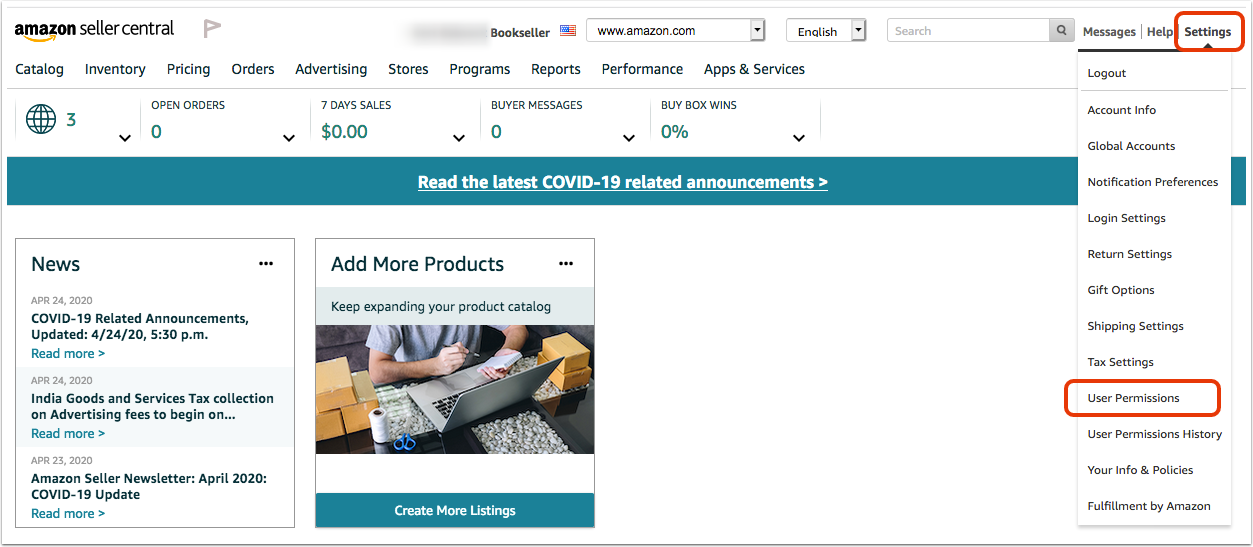
1. Login to your Amazon Seller Central account. Go to 'Settings' in the top right corner and select 'User Permissions' from the drop down menu.
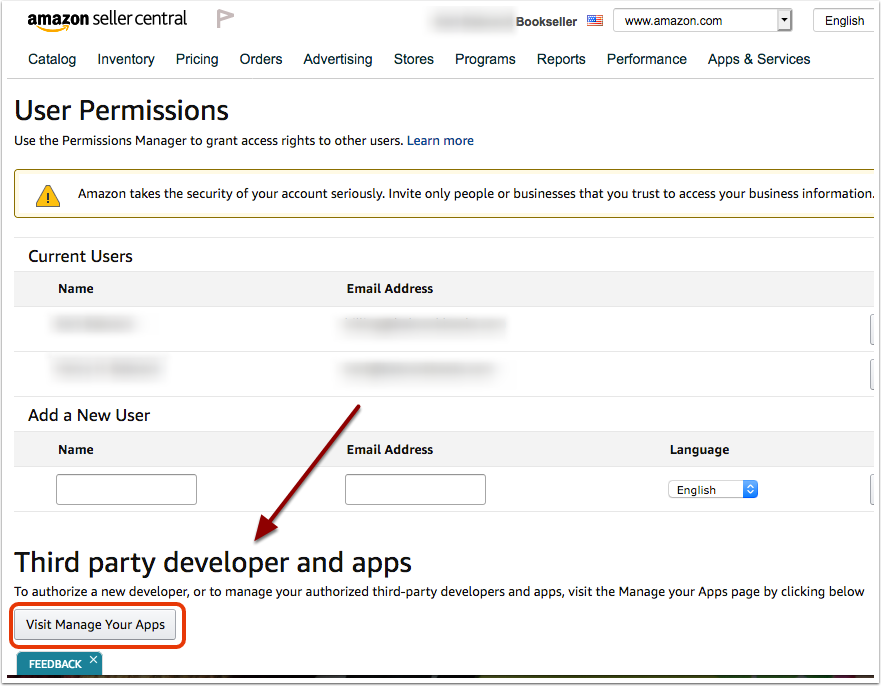
2. Scroll down to the 'Third party developer and apps' section and click 'Visit Manage Your Apps.'
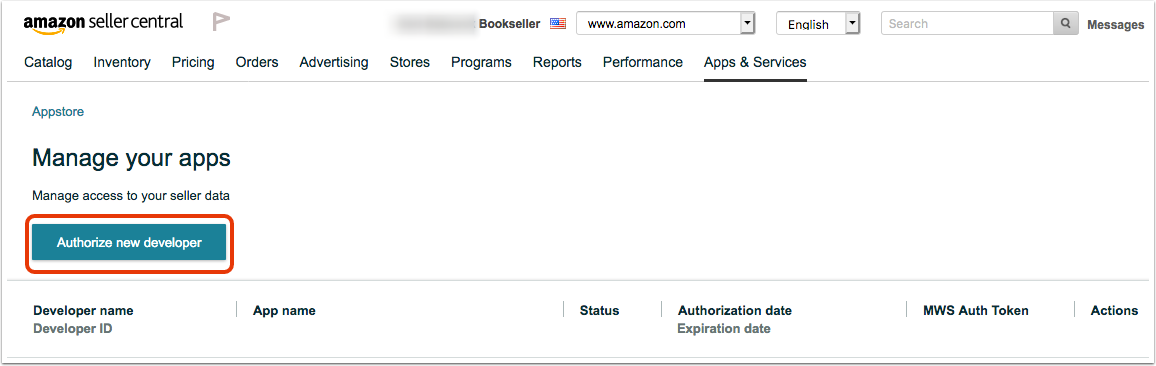
3. Click the button 'Authorize new developer.'
4. Enter the 'Developer's Name' as Bibliopolis-NA and the 'Developer ID' as 5549-6721-4163.
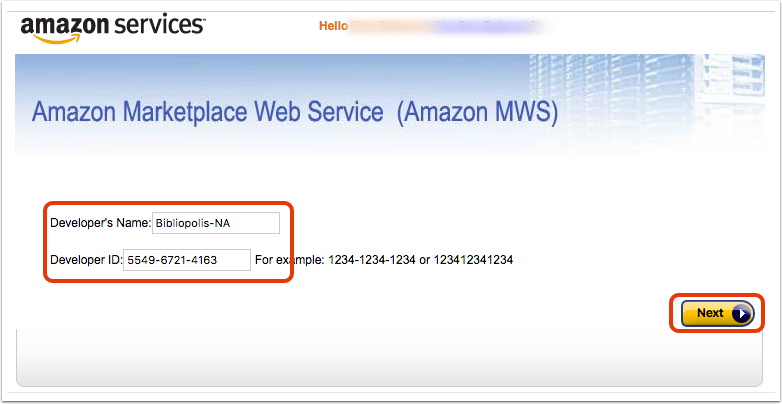
5. Review and accept the Amazon MWS License Agreement. Then, click the 'Next' button.
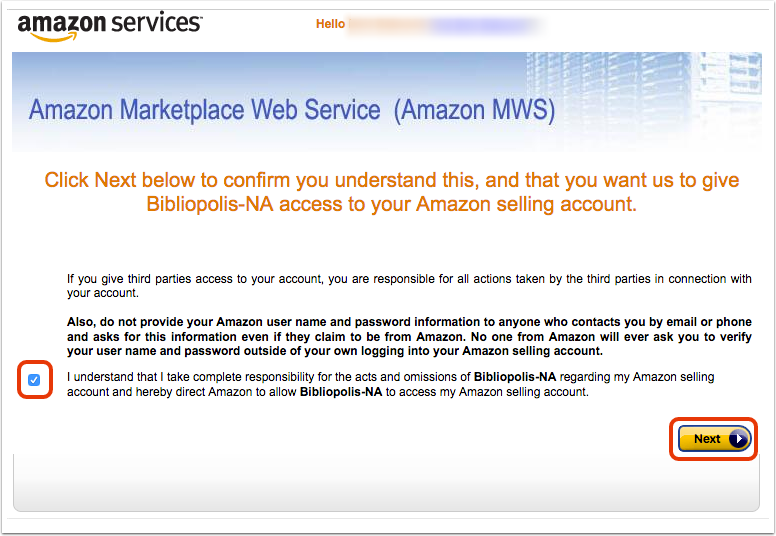
6. Make note of your Merchant Token (Seller ID) and MWS Auth Token, you will need them in the next step.
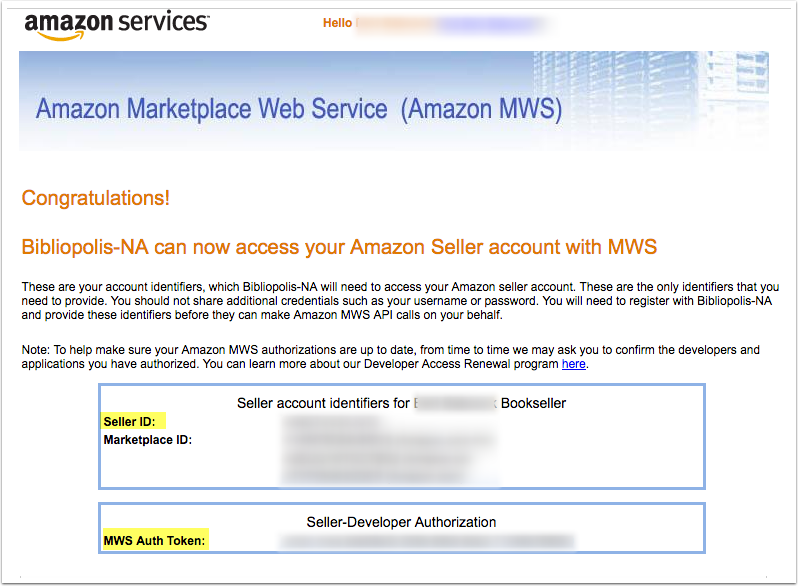
Second, test the connection in your Admin/Control Panel:
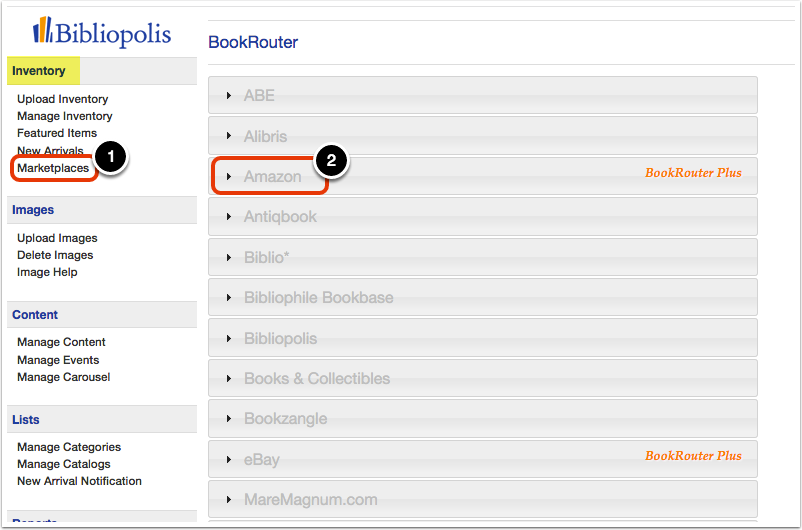
1. Login in to your Admin/Control Panel. Click on 'Marketplaces' under the 'Inventory' heading on the Control Panel menu. Then, click on 'Amazon.'
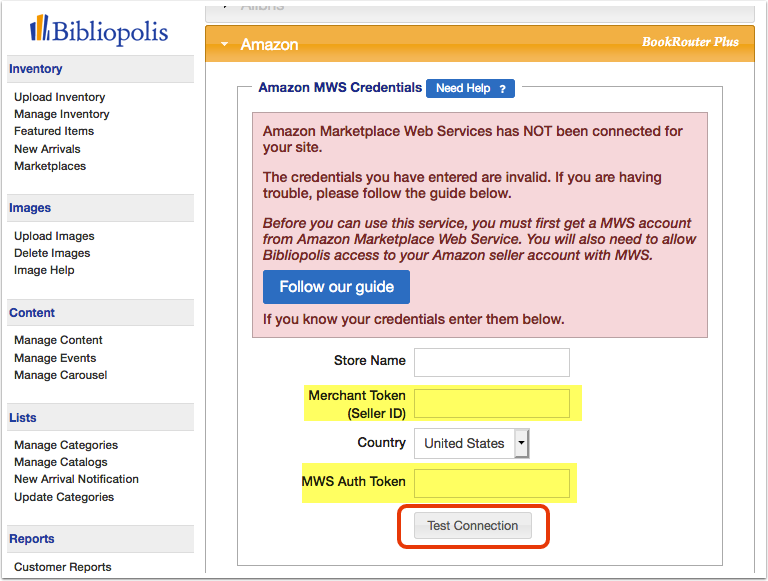
2. Enter your 'Merchant Token (Seller ID)' and 'MWS Auth Token.' (The 'Store Name' and 'Country' should be pre-populated.) Then, click the 'Test Connection' button.
3. Upon successful connection, you will see a message in a green box indicating your account is now connected. Configure your settings, then click 'Save.'
If there is an issue with the connection, please double-check that you have entered the correct Merchant and MWS Auth Tokens. If you still have trouble connecting, please email support@bibliopolis.com.
'Default Shipping Group' only applies if you have set up custom shipping templates in your Amazon account. If you have not created any custom templates, please leave this blank.