How do I connect to/start selling on eBay? (customized steps)
Getting Started
Before you begin, please email support@bibliopolis.com with your interest in purchasing the eBay BookRouter Plus option. The service is $50/month with a one-time $150 setup fee.
When you have received confirmation that the service has been enabled, click continue below.
Please note that Amazon is included in the $50/month BookRouter Plus fee.
What type of eBay account do you have?
If you feel comfortable doing so, we recommend that you convert your personal account to a business account. It is free to do and if you have a history of selling on eBay, then converting your account can help increase your initial selling limit.
You can still sell personal items through the account as well, keeping in mind your selling limits.
Which account type do you plan to use?
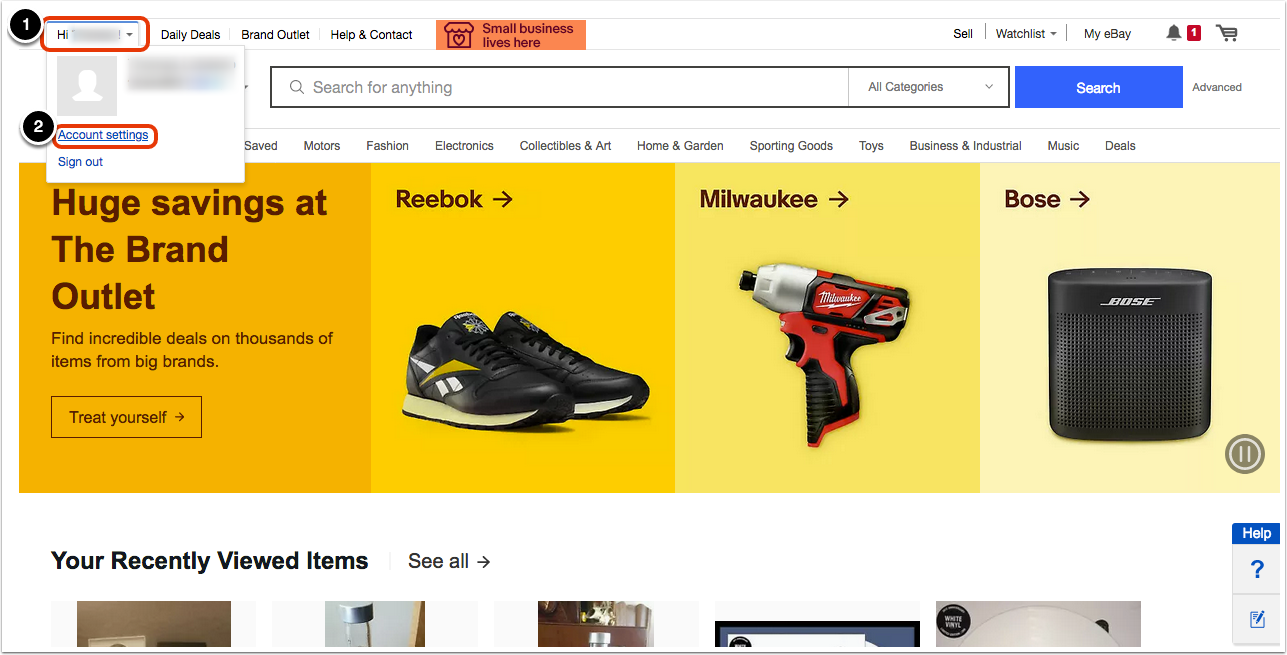
Login to eBay and click your name in the top left of the screen, then click 'Account settings.'
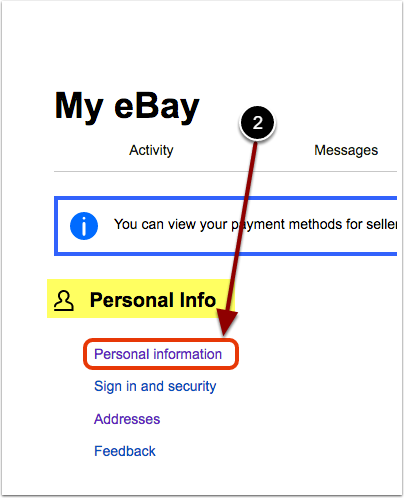
Click 'Personal information' under the 'Personal Info' heading on the left.
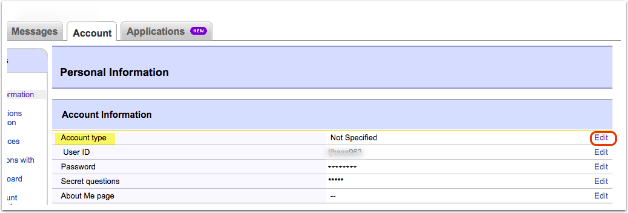
Click on 'Edit' next to 'Account type.'
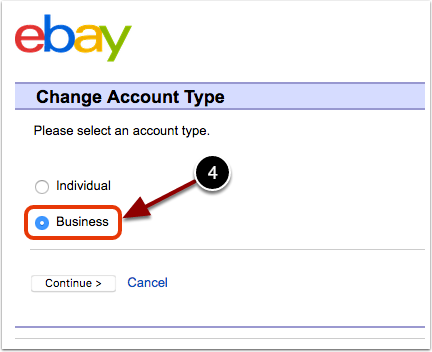
You will be prompted to re-enter your login credentials. Then, choose 'Business' and click 'Continue.'
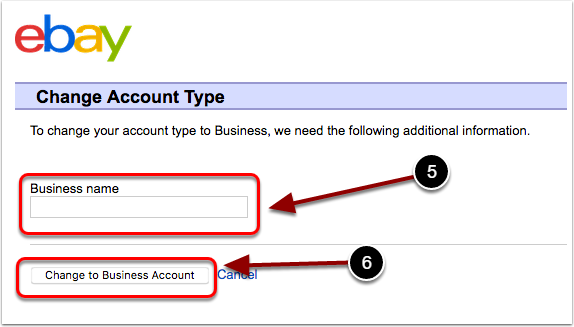
If your 'Account type' was set to 'Personal' instead of the 'Not Specified' shown above, then the 'Change Account Type' page will look like the image below. Enter your 'Business name' and click 'Change to Business Account.'
Click here to register a new business account.
Click here to register a new business account.
Check your selling limits on eBay
Click here to see your selling limits and request a limit increase, if needed.
You must be logged in to your eBay account to see your selling limits through the above link. You can also follow the directions on that page to find your selling limits in your Seller Hub.
Bibliopolis can help you work within your selling limits. Contact us to discuss ways that we can help automate the selection of items based on price and other criteria.
Disable email notifications in eBay
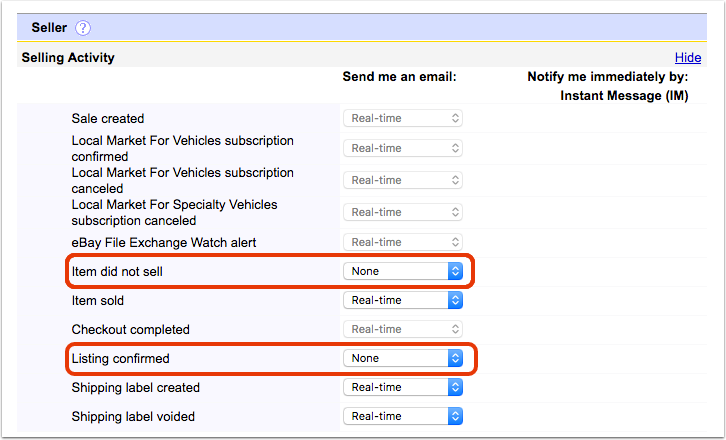
Our system will be adding and editing items regularly, which can result in thousands of email notifications from eBay. We recommend disabling notifications about unsold items and new listings.
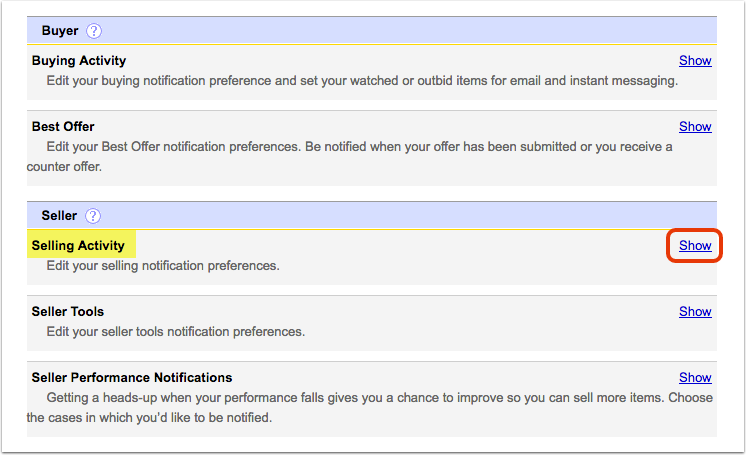
Click here to access your communication preferences page. Scroll down to the 'Seller' heading, then next to 'Selling Activity' click 'Show'.
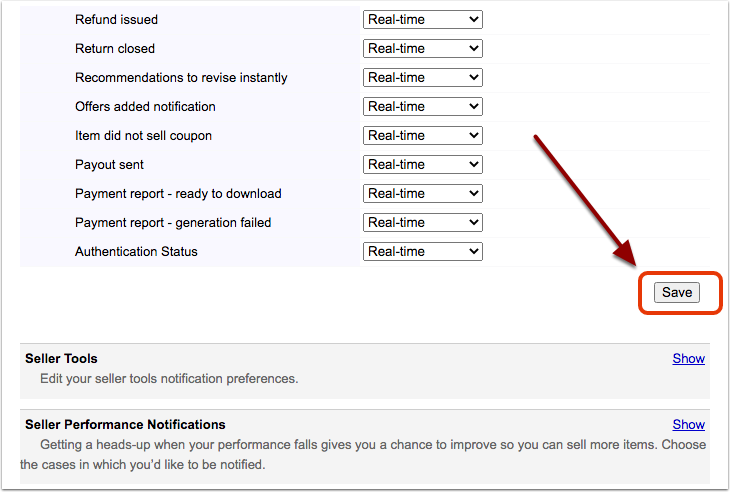
Then, change 'Item did not sell' and 'Listing confirmed' to 'None.'
Scroll down and click 'Save.'
Set up your business policies on eBay
1. Opt in
Click here and opt-in to eBay's business policies, if asked.
2. Focus on the default policies
Give the default policies names that you can easily identify as you will assign these later in your website admin/Control Panel.
Many clients have expressed that setting up business policies on eBay is overwhelming due to the number of auto-generated policies. We recommend that you focus on your default policies (one each for 'payment,' 'return,' and 'shipping.')
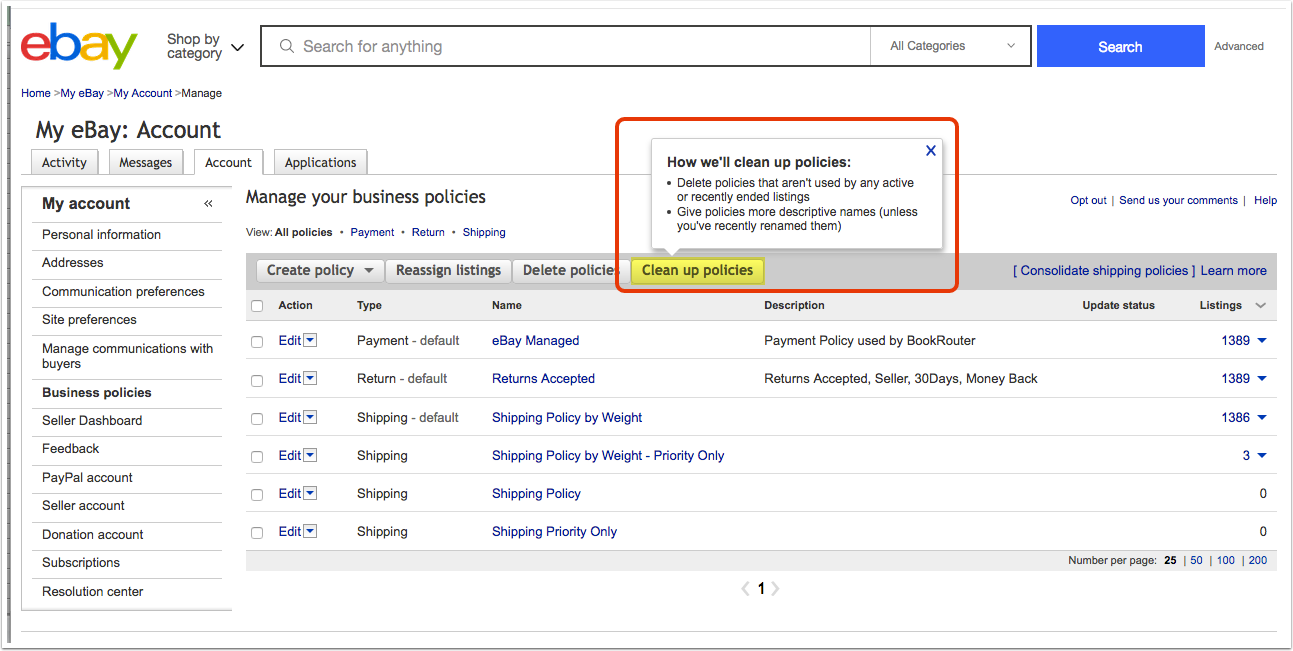
In the screenshot below, you can see which policies are default by looking in the 'Type' column. If none of the other policies are familiar, you can delete all but these three. If you are unsure about deleting policies, you can also look at the last column, 'Listings.' If you see a policy that is unfamiliar (and therefore likely auto-generated) and has zero listings assigned to it, then it is likely safe to delete.
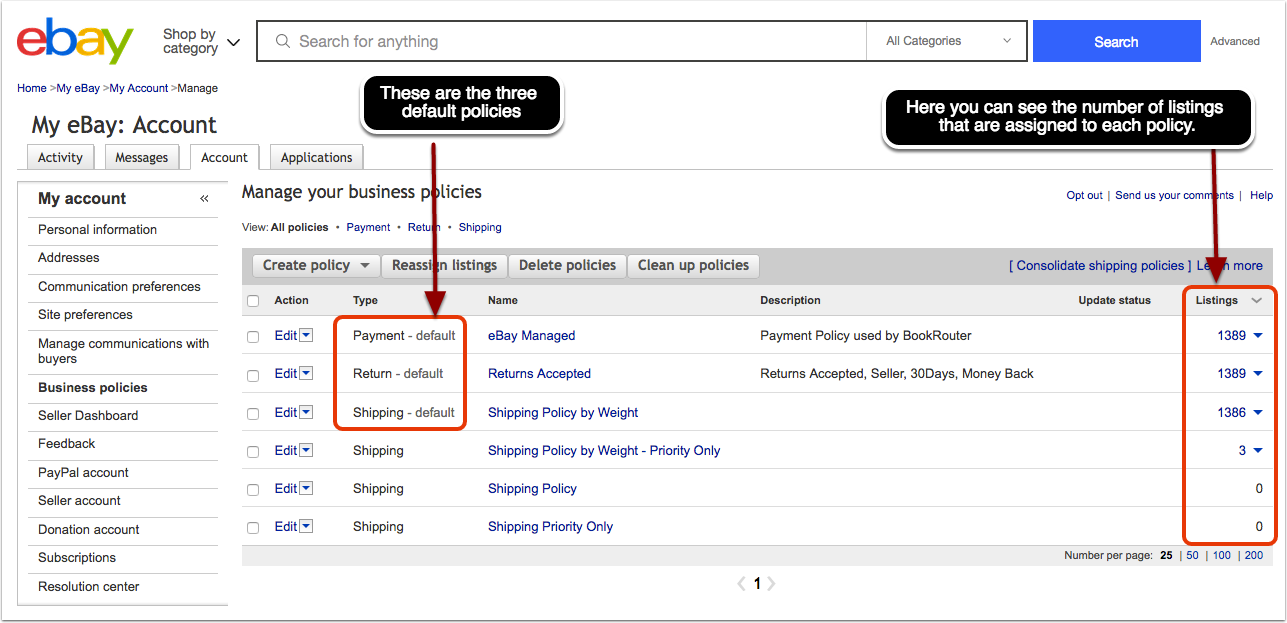
In the above screenshot, two of the shipping policies have zero listings associated with them: 'Shipping Policy' and 'Shipping Priority Only.' Unless you created them yourself or plan to assign listings to them, they are likely auto-generated by eBay and can be deleted.
There is also a 'Clean up policies' button at the top of the table. It should eliminate most unused, auto-generated policies as well.