How do I login to my account using two-factor authentication?
Two-Factor Authentication is part of a series of security updates that we are making to better protect your sensitive data. It is an additional layer of security that will require you to enter a code sent to a valid phone every time you log in using a new device.
1. Log in
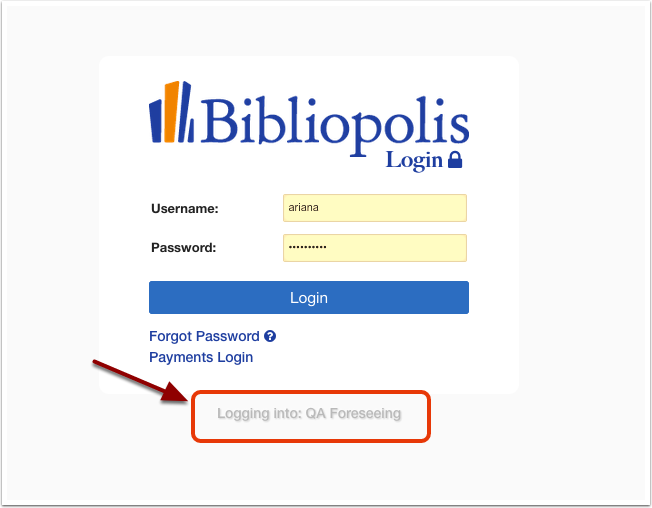
To begin, navigate to your Control Panel login page. Then, enter your username/password and click 'Login' as you usually would.
Please note that below the login button it will always say 'Logging into: [your site name].' This is another security measure to ensure that you are entering your information into your true website rather than a phishing website.
It is also important to double-check the URL at the top of the page. Phishing websites often will use a similar URL with only minor differences.
2. Follow the prompts
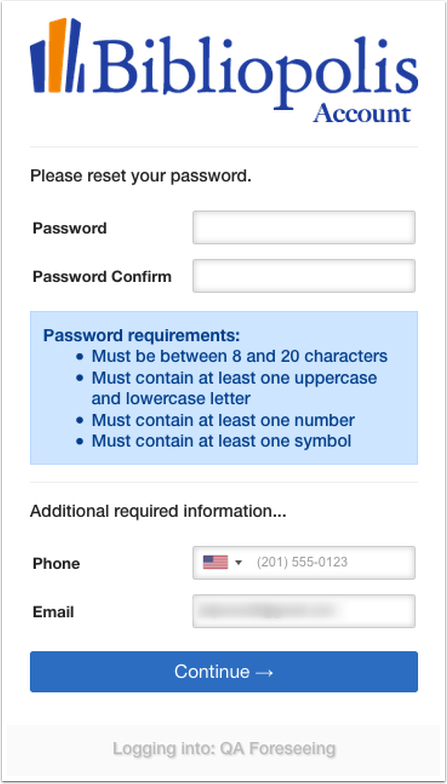
You will be automatically redirected to a page that will ask you to reset your password and provide your phone number and email in order to confirm your identity in the future. (The email currently associated with your account will be pre-populated, you can update it at this time if you wish.)
3. Receive and enter the 6-digit verification code
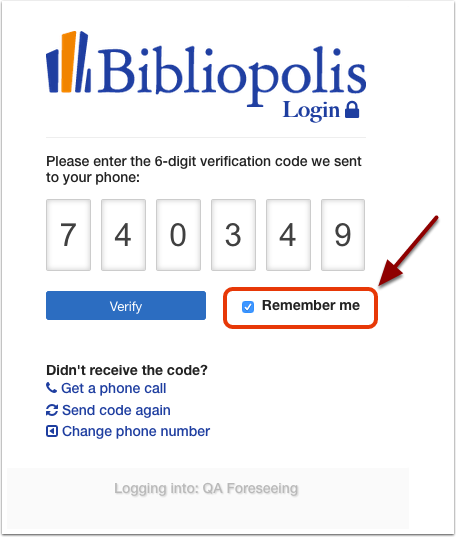
If the number you provided is a cell phone, you will be sent the code instantly via text. Enter the code, then check the 'Remember me' box before you click the 'Verify' button. By checking 'Remember me,' you will not need to do two-factor authentication again on your current device. However, every time you login on a new device, you will need to complete this process again.
Troubleshooting
If you didn't receive the code, first click on 'Send code again.'
If it still does not appear within a couple minutes or if the number you provided is a landline, click on 'Get a phone call.' You should immediately receive a phone call. The automated message will ask you to press six to hear the verification code. It will repeat the code three times.
If you do not receive a phone call and you have another phone readily available, try clicking on 'Change phone number.'
If you still do not receive the code or are unable to try a different phone number, please reach out to us at support@bibliopolis.com.
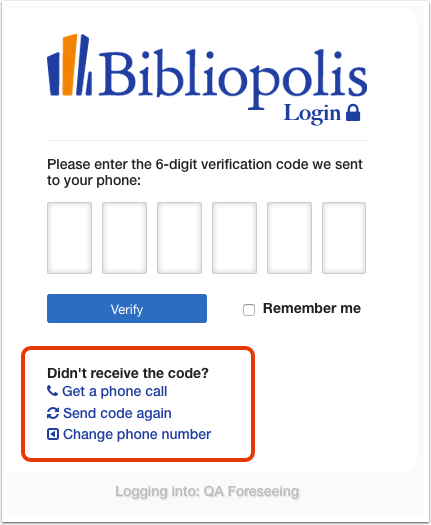
Please note that the option to 'Change phone number' will only be available the first time you go through the two-factor authentication process.
4. Email verification
After you enter the code and click 'Verify,' you will be logged into your Admin/Control Panel. At the top of the page, you will see a banner asking you to verify your email address. You should have already received the verification email, if you don't see it then click 'Re-send Verification Email now.'
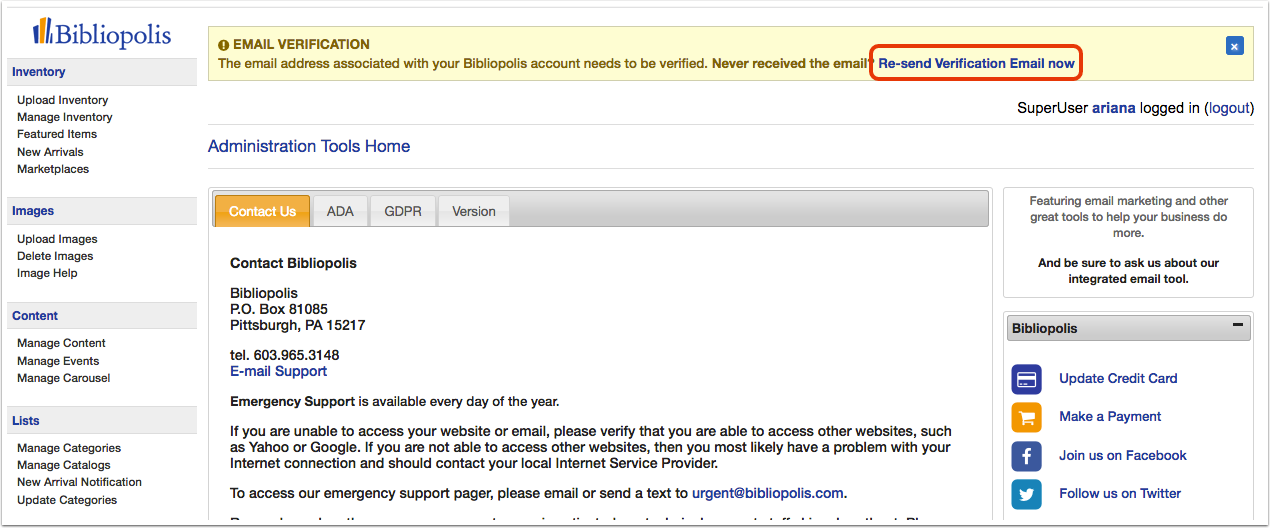
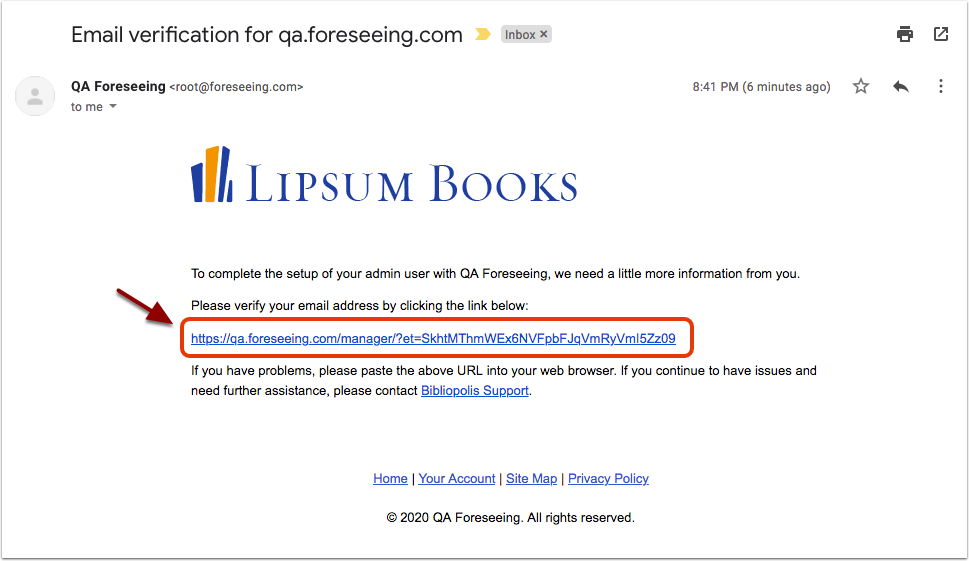
Below is an example of the verification email. Click the link to verify your email.
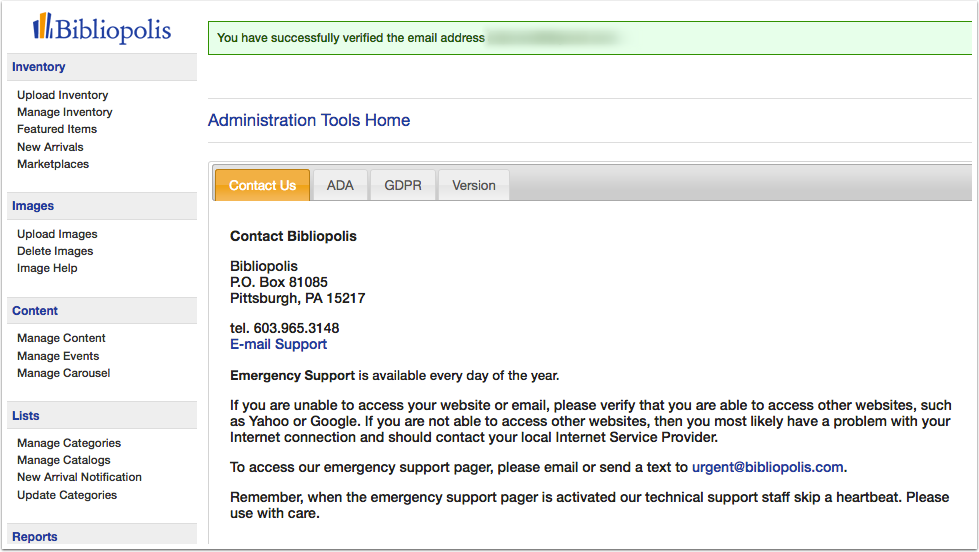
When you click the link, it will open a new window with your Admin/Control Panel. At the top of the page, you will see a banner that confirms your verification was successful.
After completing the Two-Factor Authentication process, you will receive the below email. Even if you chose not to update your password or other information, the system identifies this process as a change to your account and will send you a change confirmation email.