How do I edit an item's volumes?
1) Click on 'Manage Inventory' under the 'Inventory' heading in the Control Panel menu.
2) Use 'Find by ID' or 'Keyword Search' textbox to find the Item. (Or you can use 'filter' icon next to keyword search textbox for 'Advanced Search')
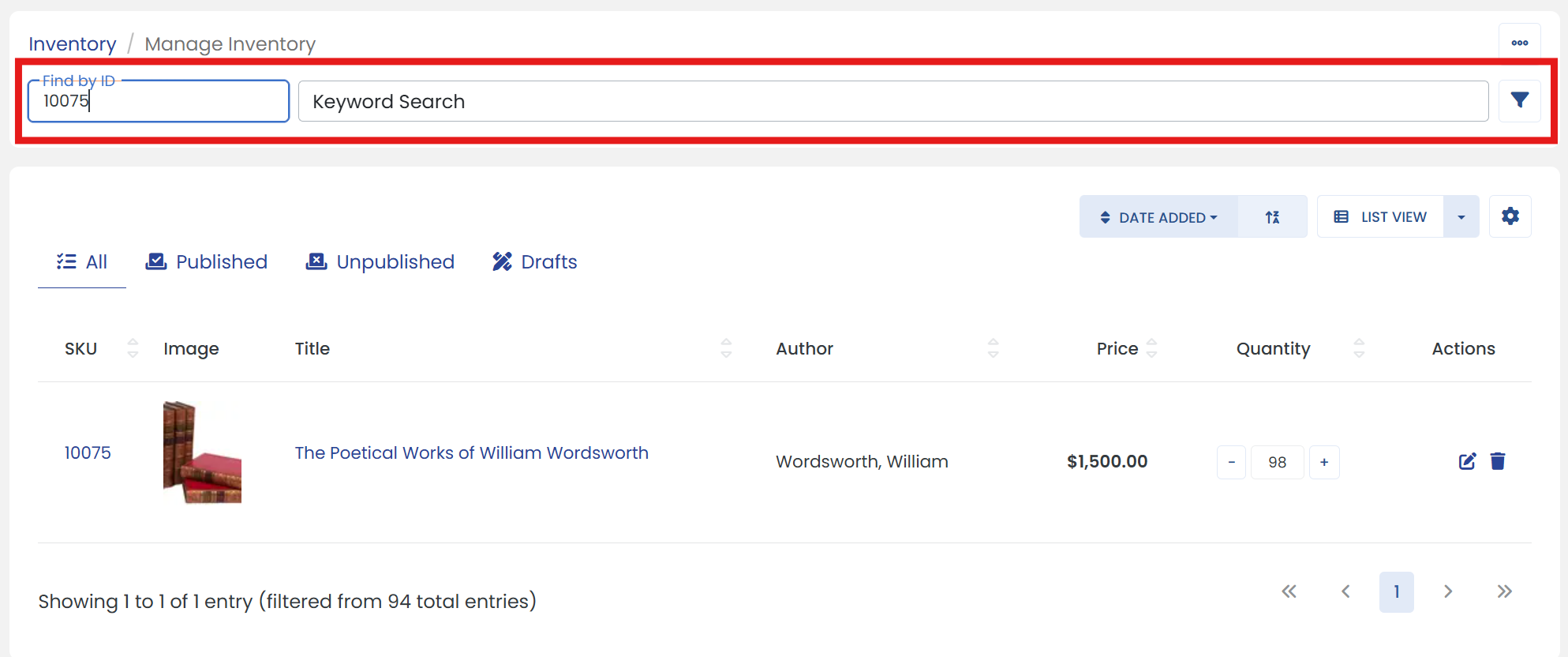
3) Click the 'Edit' icon at the end of your item to go to it's settings page.
4) On the 'DETAILS' tab, edit your item's volumes in the 'Volumes' textbox. You can either enter value or click on up/down arrows inside to increase/decrease volumes.
5) When you are finished editing your item, be sure to click the 'Save' button at the top to finalize.